
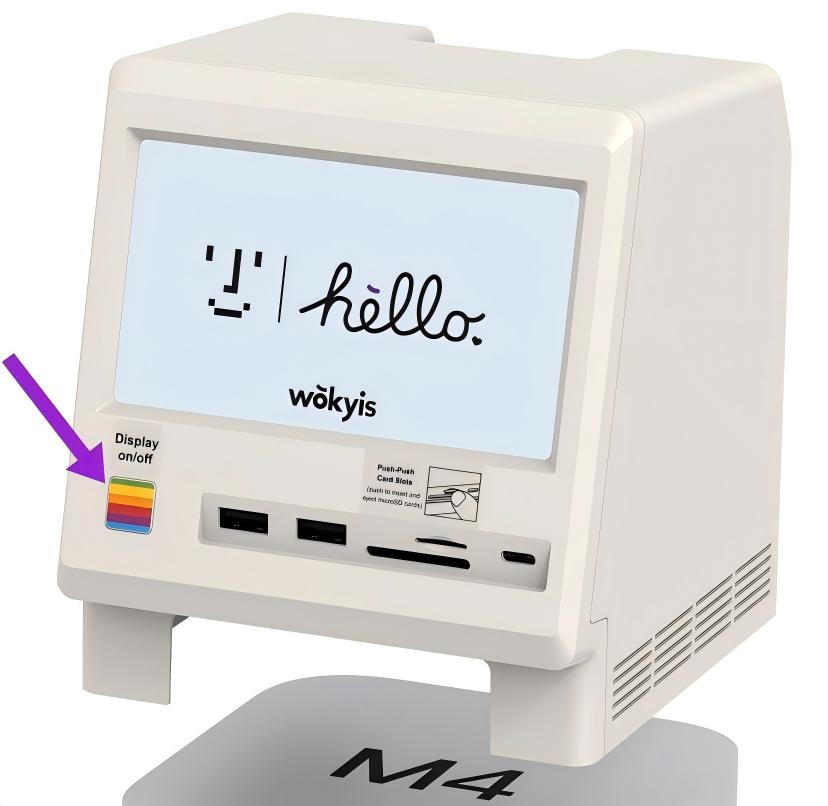
Please try the solutions and follow the steps below to see if you can get Wokyis M5 (80Gbps)’s screen working properly.
Solution #1: press the rainbow button shown in the image below to switch on/off of the screen.
Solution #2: if the Solution #1 does not resolve the issue, please try the following steps.
1. Make sure that you connect the Host port on the rear of Wokyis M5 (80Gbps) to the Thunderbolt port on the rear of Mac mini M4/M4 Pro by the Intel certified 0.5 meter 80Gbps Thunderbolt 5 cable shown in the image below.

2. Connect the PD port on the rear of Wokyis M5 (80Gbps) to any USB-C wall charger with power consumption over 36W.

3. If you tried step 1 to 2, but the screen is still not working properly, please check if the USB ports and M.2 NVMe SSD on the Wokyis M5 (80Gbps) are functioning or not.
Solution #3: check if the Wokyis is shown in the Display settings (macOS or Windows):


Solution #4: check if the Wokyis M5 (80Gbps) is detected in the Hardware list in System Information.
1. How to check it in macOS: Launchpad > System Information > Hardware > Thunderbolt / USB4. If it shows Wokyis M5 TBT5 SSD, it means the Wokyis M5 (80Gbps) is connected and detected by your Mac. 2. How to check it in Windows OS: Computer Management > Device Manager >

Solution #5:
If the screen of Wokyis M5 (80Gbps) shows the image as below, it means the display need to reset. Please try to change the display settings in by step 1, 2, 3, and 4.
 Here is the tutorial video on how to change the display settings on YouTube:
Share:
Screen Issue Troubleshooting Wokyis M5 (10Gbps)
How to Install an M.2 NVMe SSD on the Wokyis M5 80Gbps